You added a new table to your database, but it's not showing up in Flashboard. Don't worry, nothing's broken. You just need to add it as a tab.
Why new tables don't appear automatically
When you first create a panel, Flashboard reads your database schema and generates a tab for each table. But after that initial setup, it stops syncing automatically.
Why? Because you've probably customized things. You may have renamed tabs to be more readable, reordered them to match your workflow, or removed ones you don't need. If Flashboard auto-synced every time your schema changed, it would overwrite all that work.
So when you add a new table to your database, Flashboard leaves your existing tabs alone and lets you decide whether to add the new one.
Which tables get tabs?
When creating a panel, Flashboard generates tabs for tables that have a PRIMARY KEY constraint. It also skips common framework tables to keep your panel clean:
- Migration tables (
prisma_migrations,knex_migrations, etc.) - Session tables (
sessions,user_sessions, etc.) - Background job tables (
delayed_jobs,good_jobs, etc.) - Auth framework tables (
oauth_access_tokens,password_resets, etc.)
How to add a new table
- Open your panel
- Click + New tab at the bottom of the tabs list
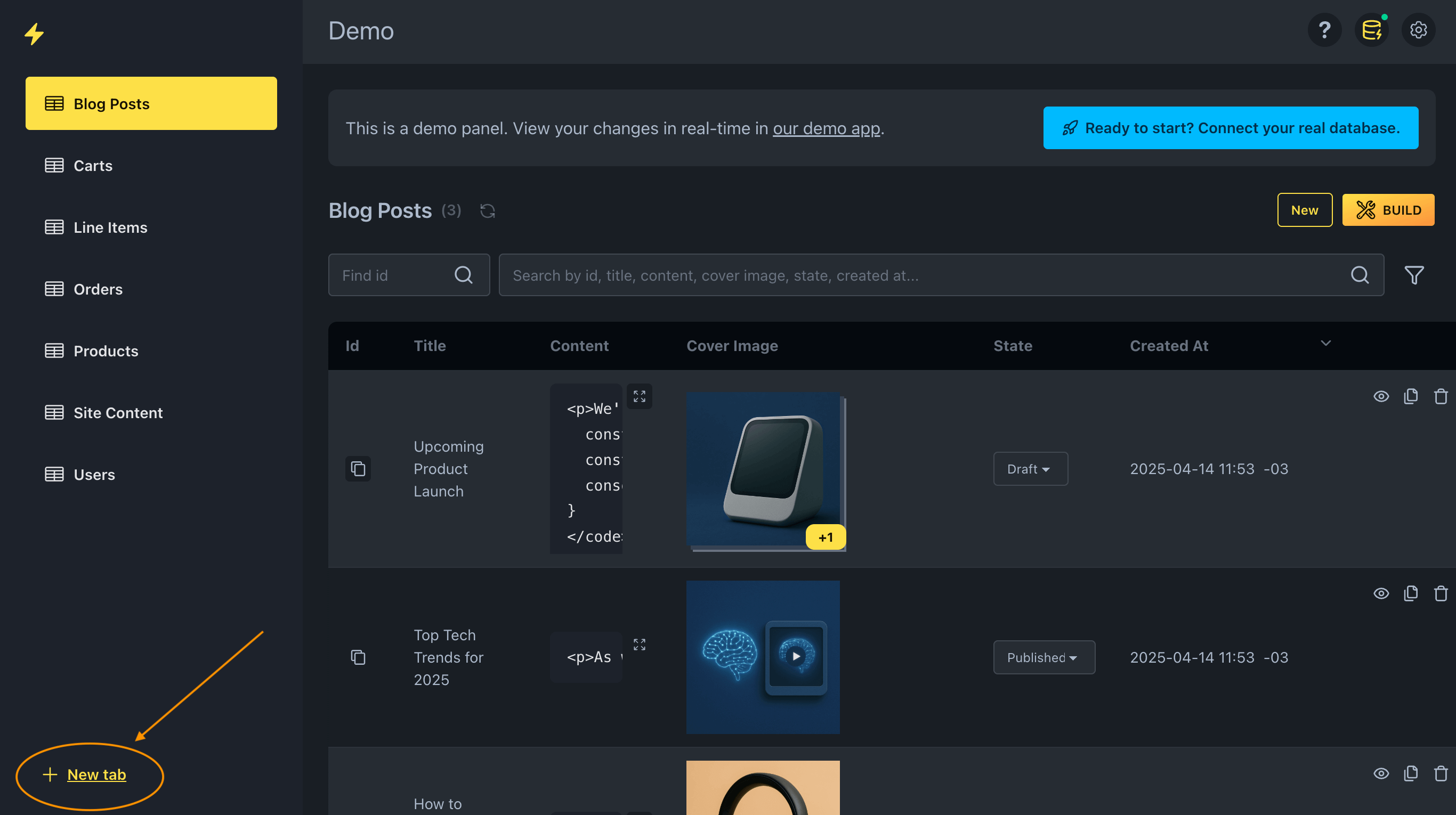
- Select your new table from the dropdown
The dropdown shows all tables with PRIMARY KEY constraints and views from all schemas. It includes the tables that were excluded during initial panel creation, so you can add them if you wish to. Views are read-only.
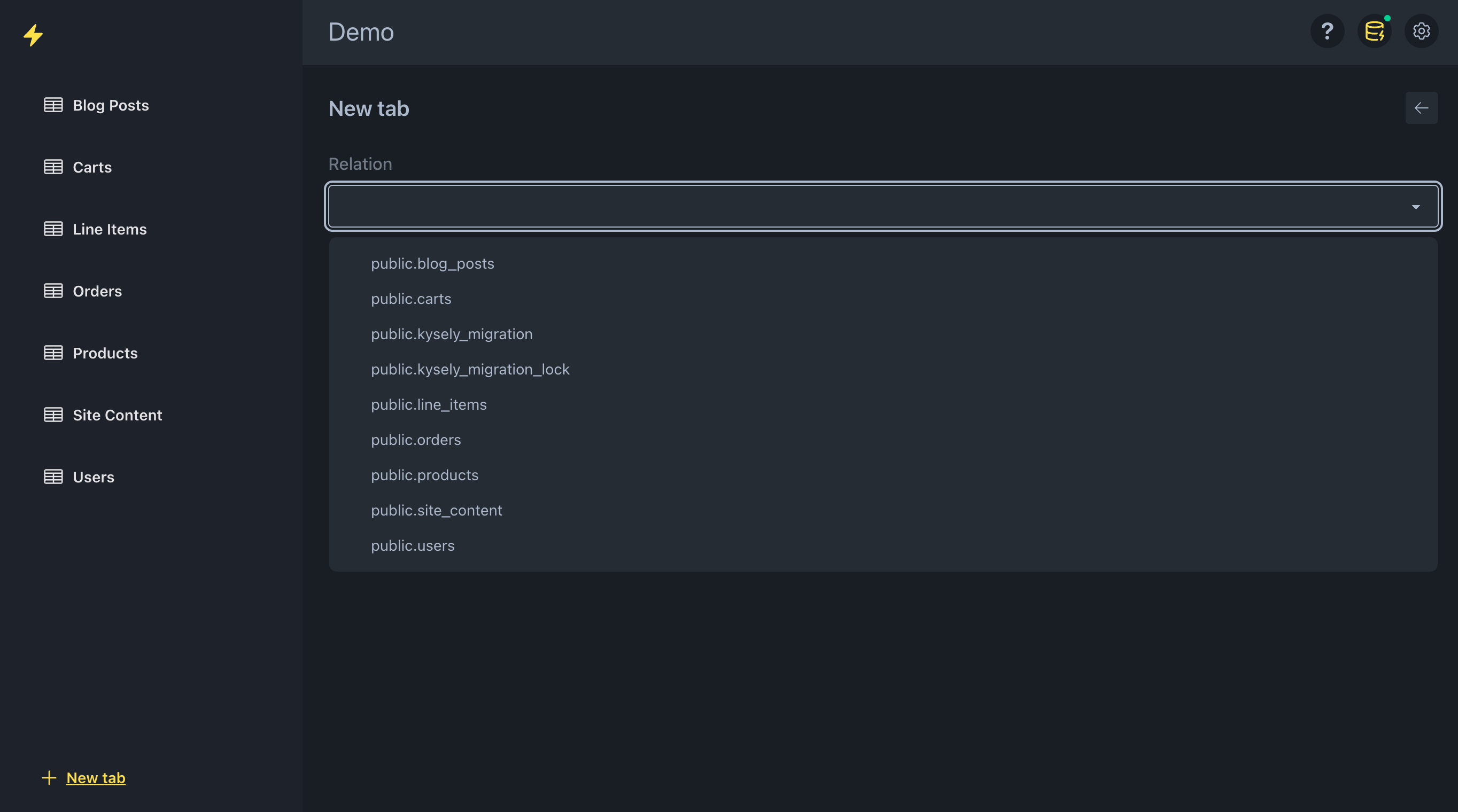
- Use the default tab name or change it, and click OK
Your new table is now a tab, ready to use.